
SMM Panel GCash and Maya Payment: How to Add Funds Step by Step (2026)
To pay for an SMM panel with GCash or Maya, log in, open Add Funds, choose the Philippines payment option, enter your amount and approve the payment in your wallet app. Automatic payments usually reach your panel balance within a few minutes. Then use that balance to order any service.
GCash and Maya Payment Options on an SMM Panel
An SMM panel works like a prepaid wallet. You add money first, and each order is deducted from that balance. You do not pay separately for every order, and you never type your GCash or Maya details into an order form.
On JTSMMPANEL, Filipino users have two ways to add funds. Pick one before you open your wallet app.


Automatic: Philippines option
Listed as "Gcash / Maya + More Philippines". The payment goes through a gateway, and the balance updates by itself.
- Works with GCash and Maya
- No proof to submit in normal cases
- Usually done in a few minutes
Manual: GCash transfer
Listed as "Manual - Gcash". You send money to the account shown on the page, then give the transaction details.
- GCash only
- You must keep and enter your reference details
- Needs a manual check, so it can take longer
How to Add Funds with GCash or Maya: Automatic Method
Have your wallet app open and your balance ready. These five steps take about two minutes.
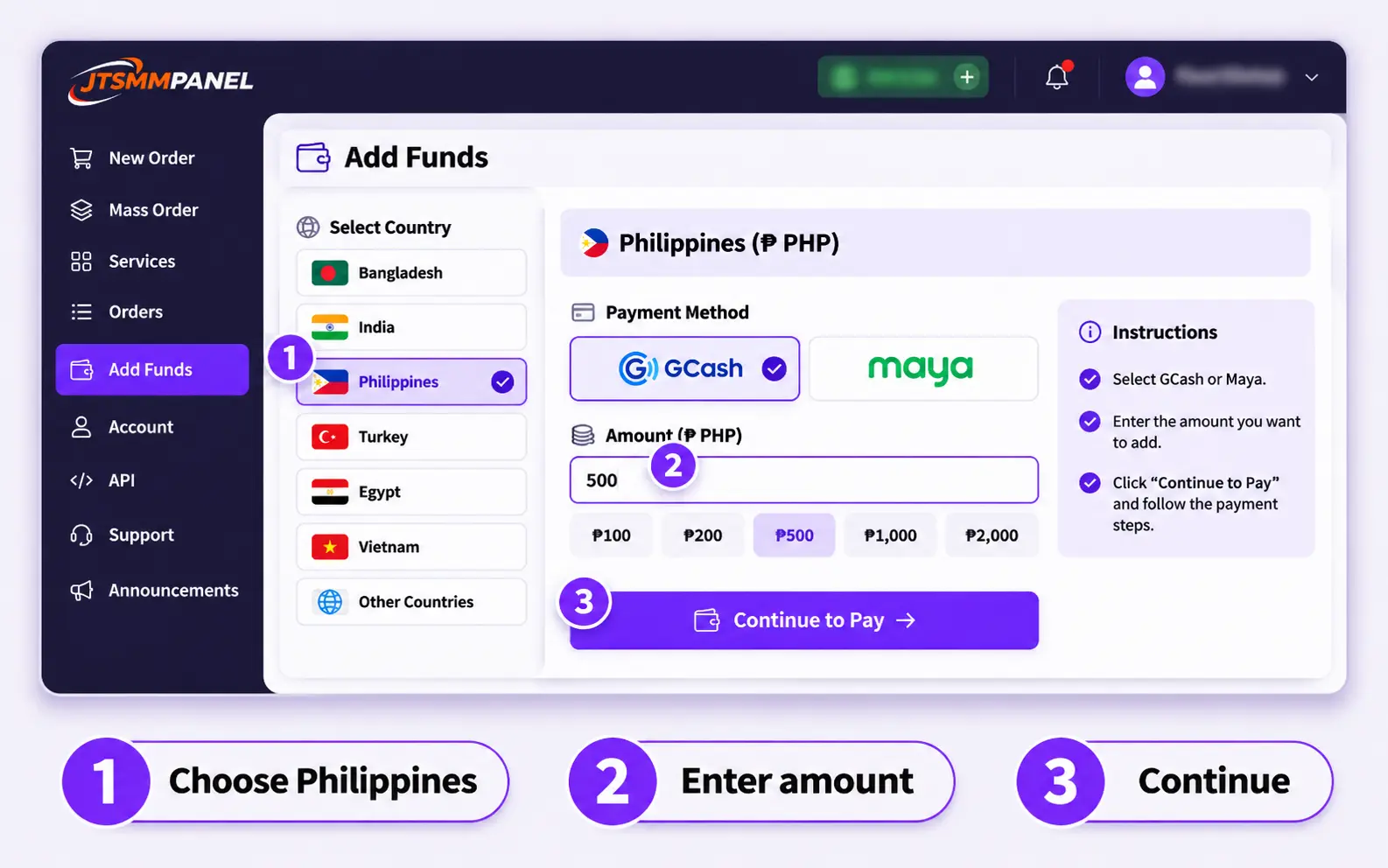
Log in and open Add Funds
Sign in to your account and open Add Funds from the menu. New here? Create a free account first.
Select the Philippines payment option
Choose "Gcash / Maya + More Philippines". The page then shows that method's instructions, minimum amount and exchange rate. Read them, because they can change.
Enter your amount
New users should start with a small amount and test one service. You can always add more later.
Pay in GCash or Maya
Follow the payment screen. If it shows a QR code, scan it with your wallet app. Paying on one phone? GCash lets you save the QR image and upload it from your gallery in the app's scanner. Check the amount and merchant name, then approve.
Check your balance
Go back to the panel and refresh. Your balance should update within a few minutes. Keep your wallet receipt until you see the funds.
How to Pay with Manual GCash
Use this only if the automatic option is unavailable or the page asks you to use it.
Select "Manual - Gcash"
Open Add Funds, choose the manual method and read the instructions on that screen. They show the current account details and minimum amount.
Send the exact amount
Send only to the details shown inside your logged-in Add Funds page. Double-check the amount before you approve. GCash says GCash-to-GCash QR transfers are free, while transfers from banks or other wallets can carry an InstaPay fee.
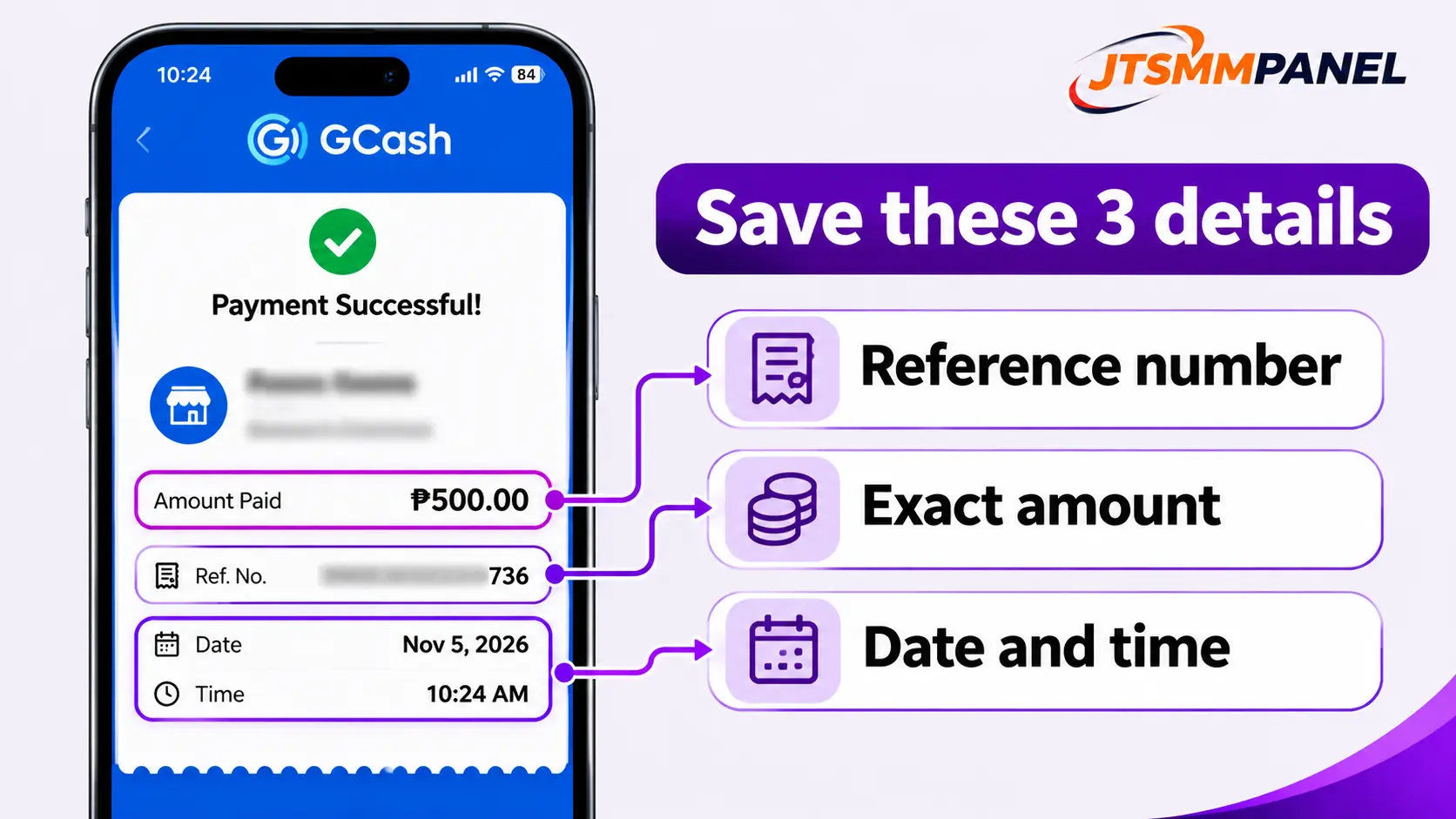
Save your receipt
Screenshot the confirmation so you have the reference number, amount, date and time.
Submit the transaction details
Enter what the form asks for, usually the transaction ID, and submit once. Sending the same details again will not speed up the check.
GCash vs Maya: Which Should You Use?
If both work for you, use the wallet that already has enough balance and the higher verification level. Failed payments are often caused by wallet limits, not by the panel.
| Check this | GCash | Maya |
|---|---|---|
| Automatic on JTSMMPANEL | Yes, through the Philippines option | Yes, through the Philippines option |
| Manual option | Yes | No separate manual option |
| Verification | Fully Verified is needed for features such as Express Send | Upgrade with a valid ID and video selfie for higher limits |
| Wallet limit | Commonly listed as ₱100,000 for Fully Verified accounts | ₱50,000 Basic, ₱100,000 Upgraded, ₱500,000 Super User |
| Where to check | Your limits inside the GCash app | Your profile limits inside the Maya app |
Wallet limits were checked in November 2026 and can change. Your app always shows your current limit.
How Pesos Become Panel Balance
Service prices are listed in US dollars per 1,000 units, but you pay in pesos. The Add Funds page converts your payment at the rate it shows at that time.
₱500 ÷ ₱58 per $1 = about $8.62 balance
$0.50 per 1,000 × 2,000 units = $1.00 order
₱58 is only an example. Use the live rate on your Add Funds page and the live price on the services page.
Save These Details After Every Payment
This small habit fixes most payment problems quickly. If something goes wrong, support needs these details to find your payment.
- WalletGCash or Maya
- Reference no.From your wallet receipt
- AmountExact peso amount
- Date and timeFrom your wallet receipt
- Panel usernameThe account you topped up
- ProofFull receipt screenshot
GCash or Maya Payment Not Showing? Fixes
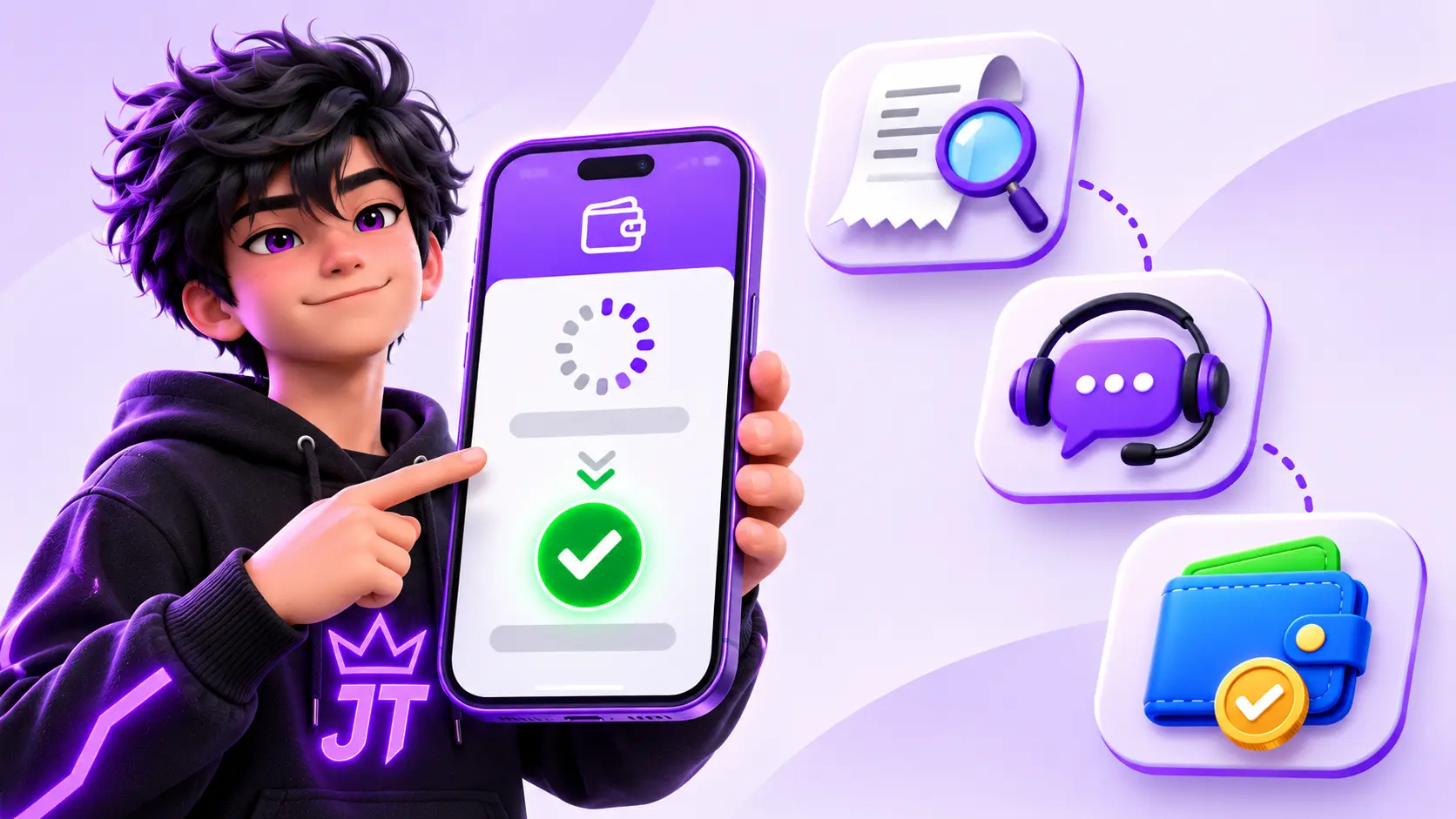
Paid, but no balance after a few minutes
Check your wallet history first. If the money left your wallet, refresh the panel, then open a support ticket with your receipt. Do not pay again.
QR code will not scan
Raise your screen brightness, or save the QR and upload it in your wallet's scanner. If it still fails, start a new payment from Add Funds.
Payment declined or over the limit
Check your balance and wallet limit. Try a smaller amount, verify your wallet for a higher limit, or use your other wallet.
Charged twice
Screenshot both transactions. Report the double charge in your wallet's help center, and open a panel ticket with both reference numbers.
You cannot see the GCash or Maya option
Check that you are logged in. Available methods depend on the live payment setup, so ask support which option to use today.
You sent the wrong amount by manual GCash
Do not send a second payment to balance it out. Open a ticket with the receipt and explain what happened.
Stay safe: never share your MPIN, password or one-time code with anyone, including people who claim to be panel support. Take payment details only from your logged-in Add Funds page, not from a stranger in a Facebook or Telegram chat. Your social media password is never needed for an order either.
What to Do After Your Funds Arrive
Start with a small test order so you can check speed and quality before spending more. These pages can help:
- See prices and payment details on our SMM panel for the Philippines page.
- Filipino pages and shops can start with Facebook services or TikTok services.
- Before a larger order, read whether an SMM panel is safe for a Facebook page.
Frequently Asked Questions
Can I pay for an SMM panel with GCash?
Yes, if the panel offers it. On JTSMMPANEL you can use the automatic Philippines option or the manual GCash option on the Add Funds page. Your payment becomes panel balance, which you then use to place orders.
Can I use Maya to add funds to an SMM panel?
Yes. On JTSMMPANEL, Maya is covered by the automatic "Gcash / Maya + More Philippines" option. There is no separate manual Maya option.
How long does a GCash or Maya deposit take?
Automatic payments usually arrive instantly or within a few minutes. Manual GCash payments need a check, so they can take longer. If your payment does not appear, open a ticket with your transaction ID.
What is the minimum deposit with GCash or Maya?
It depends on the payment method and can change, so check the amount shown on the Add Funds page. Most local wallets accept small top-ups, which lets you test a service before adding more.
Are SMM panel prices in pesos?
Prices on JTSMMPANEL are listed in US dollars per 1,000 units. When you pay with GCash or Maya, your pesos are converted at the rate shown on the Add Funds page.
What should I do if I paid but my balance did not update?
Check that the money left your wallet, wait a few minutes and refresh the panel. If the balance still has not changed, open a support ticket with your receipt, reference number, amount and time. Do not pay again.
Can I get my GCash or Maya deposit refunded?
Undelivered or partly delivered orders are refunded to your JTSMMPANEL balance automatically. Refunds back to your payment method follow our refund policy.
Do I need a verified GCash or Maya account?
A higher verification level gives you higher limits and fewer failed payments. Some features need it, such as GCash Express Send, which is only for Fully Verified accounts.